

How to Create an Event in HobbyTS
How to create a football event in HobbyTS — fill in the form, choose a field, set the details, publish, and optionally post it to the Telegram community.
Organising a game takes about two minutes
Creating an event in HobbyTS is a three-step form — Basic Info, Schedule, and Details. After publishing, players can find your game in All Events and contact you to claim a place.
Open the event wizard
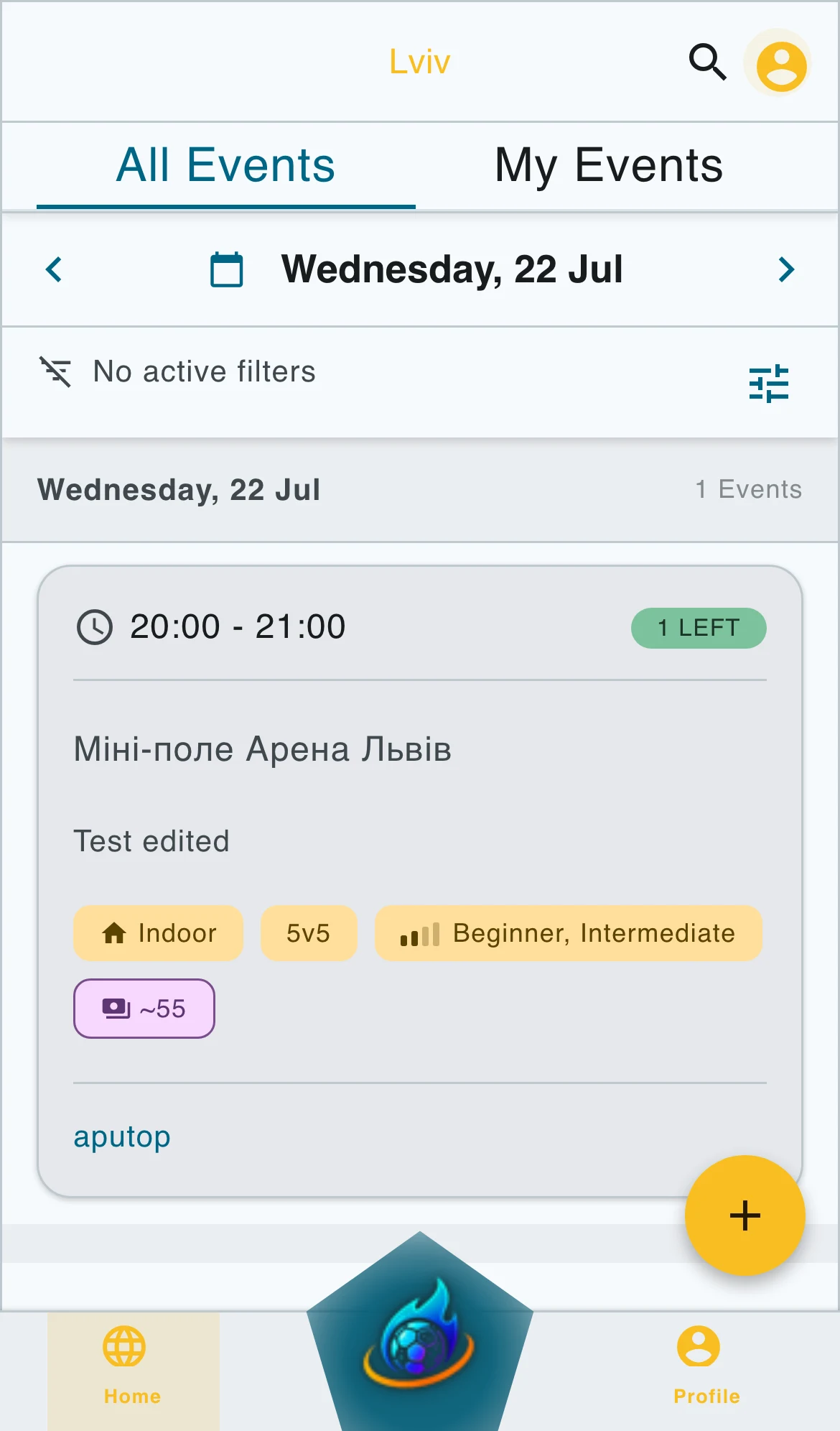
Go to the Events page and tap the floating + button in the bottom-right corner of the screen.
Wizard step 1. Basic Info
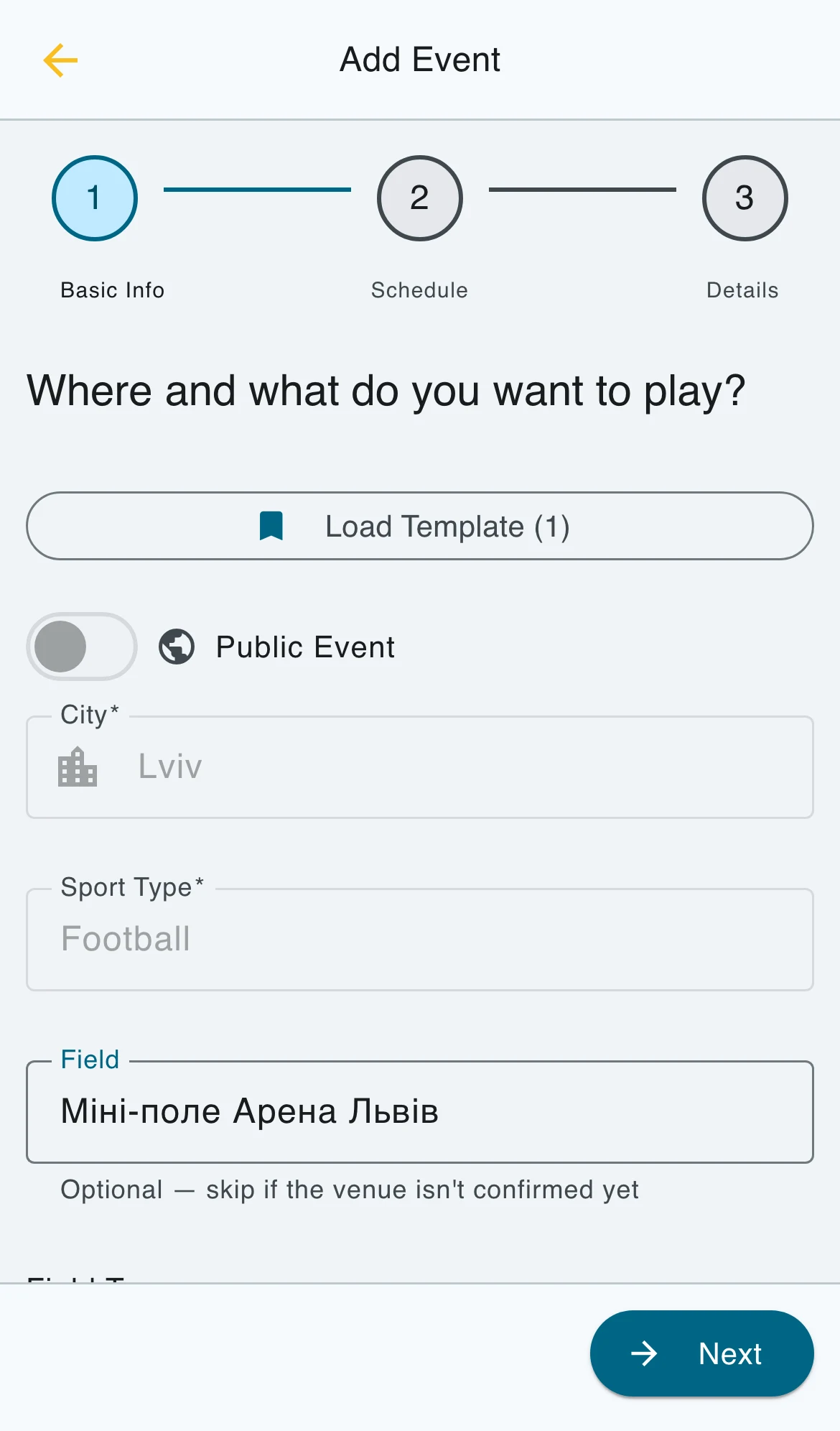
The first step covers the essential information:
- City — the city where the game takes place
- Sport Type — select Football or another available sport
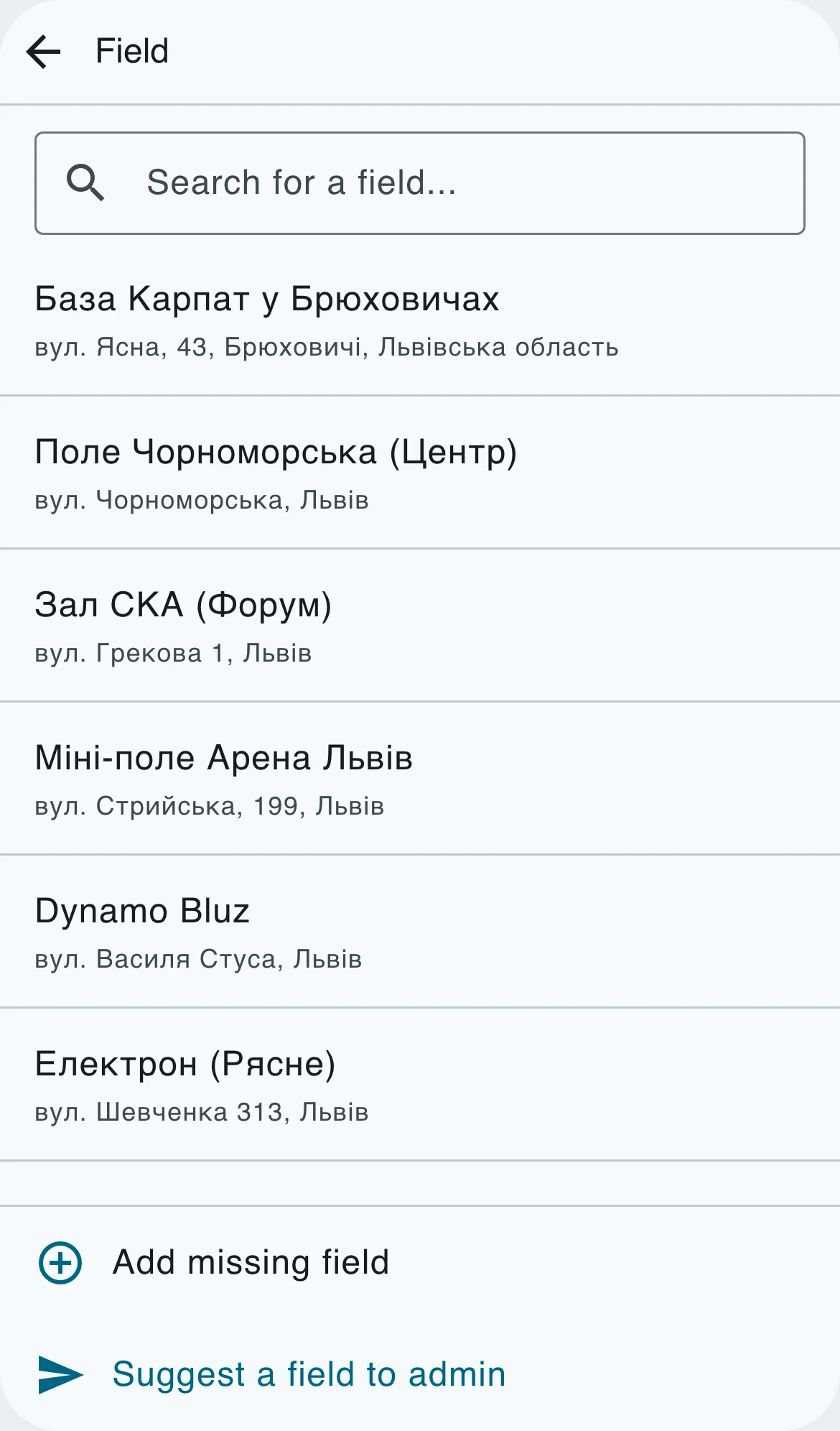
- Venue / Field — optionally search the verified Lviv venues. If the venue is not confirmed yet, leave it blank and describe it later.
- Indoor / Outdoor — choose the field type; selecting a verified field sets it automatically
Wizard step 2. Schedule
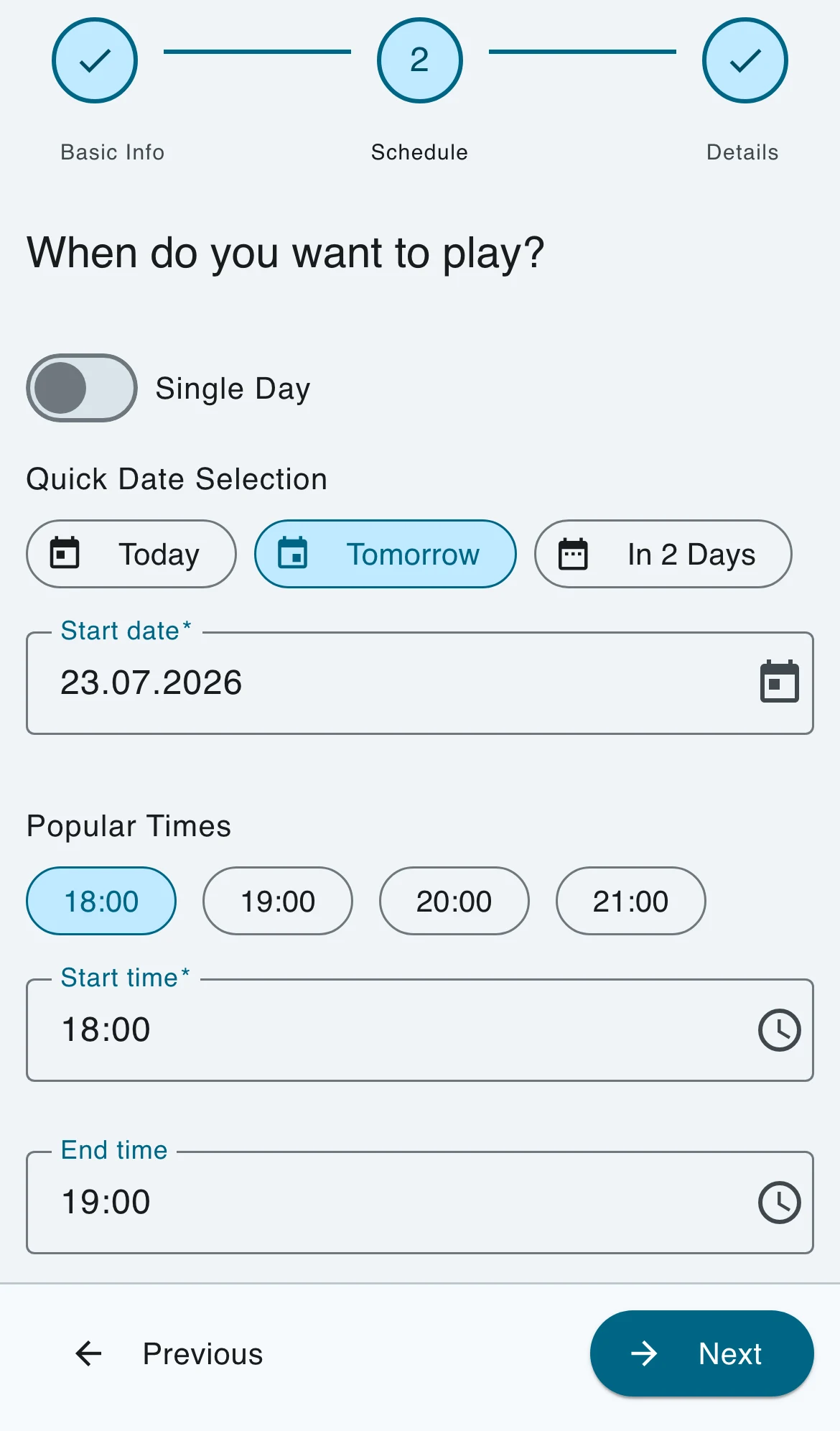
- Start date and time — when the game begins
- End time — expected finish time
- Multi-day — enable if the event spans multiple days
Quick-pick buttons let you choose Today, Tomorrow, or In 2 Days, and popular start times appear as one-tap shortcuts.
Wizard step 3. Details
- Description — anything players need to know: what to bring, how to pay, notes on the location
- Price per player — enter the amount in UAH. Tap
~if the price is approximate. - Team size — players per side (5v5, 7v7, etc.)
- Player limit — maximum participants
- Skill level — choose one or more: Beginner, Intermediate, Advanced, or Profi
- Event is full — use this when you are publishing an already-filled game
- Post to Telegram — the main publishing flow shares the event with the HobbyTS community. Your verified Telegram account must have a public username.
You can still publish to the in-app feed without Telegram when your profile has another visible organiser contact. HobbyTS will use your profile link instead of a Telegram username.
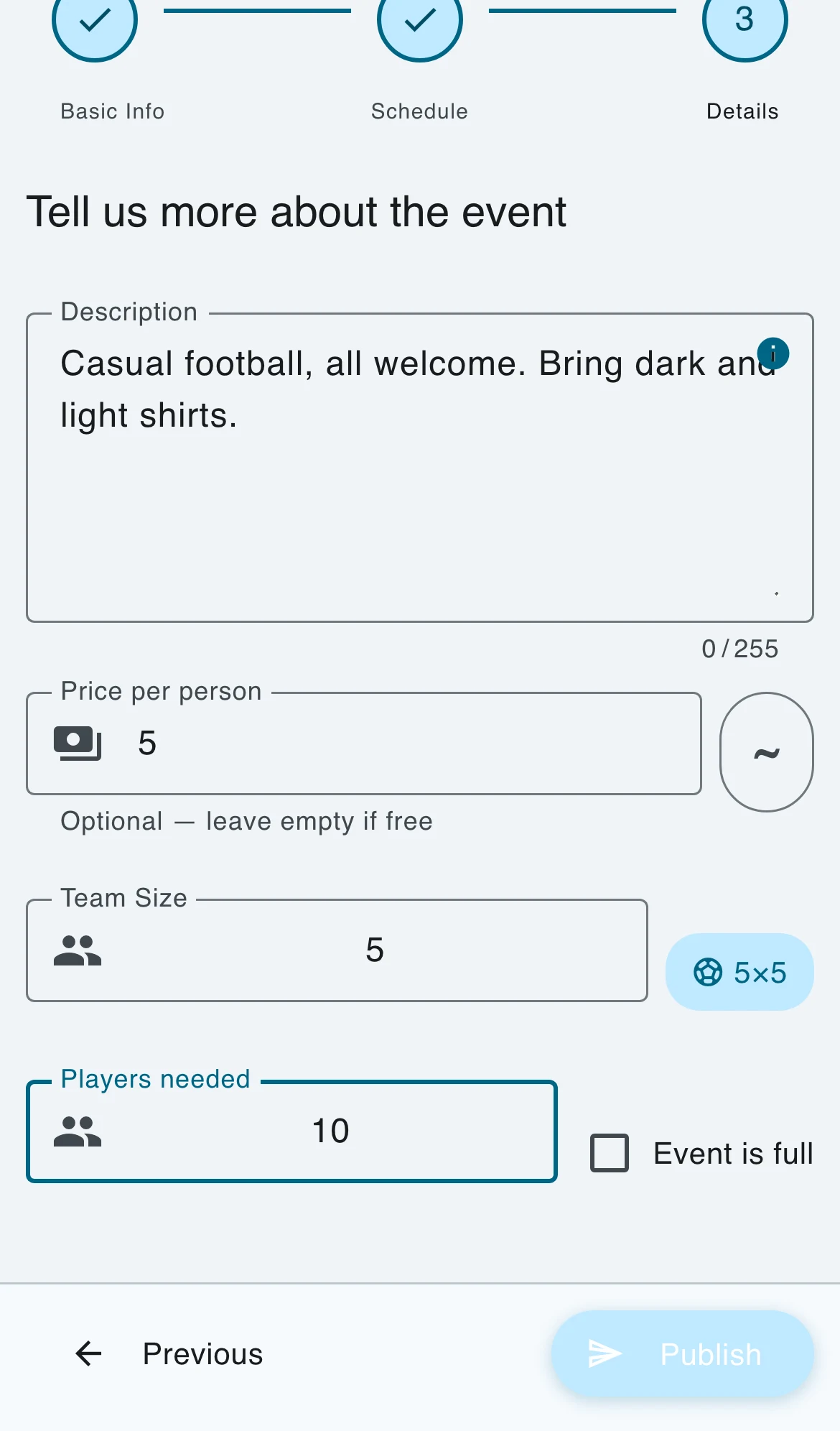
Publish
Tap Publish. A confirmation screen shows a preview — either the Telegram post preview (if posting to the channel) or the event summary. Confirm to go live.
Your event is now in the All Events list. Players can open it and contact you to claim a place.
After publishing
Player enquiries — players use your visible organiser contact or profile link to confirm a place with you.
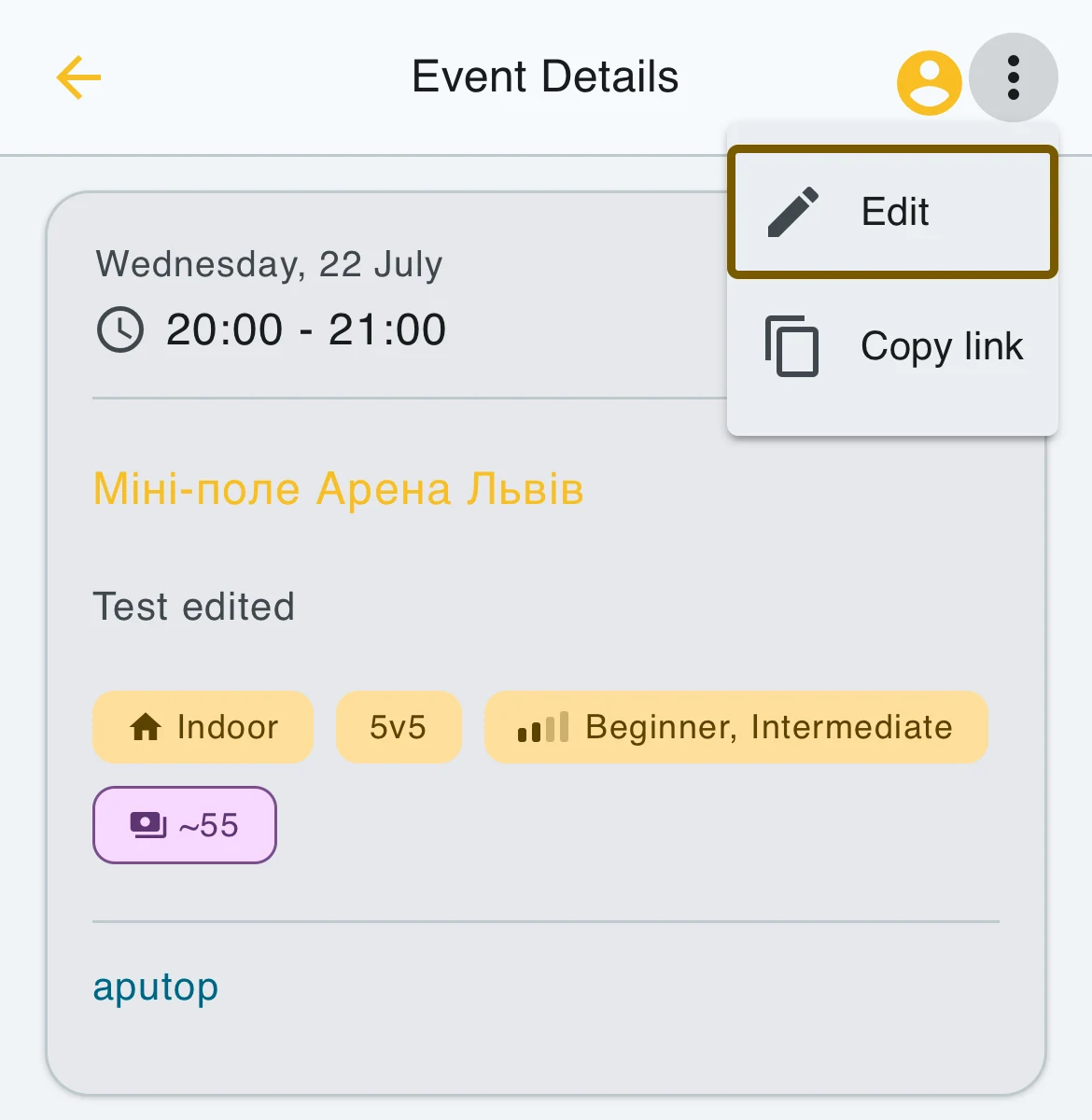
Editing — open your event, tap the three-dot menu in the top-right corner, then choose Edit. The Edit Event button at the bottom of an active event opens the same wizard.
Cancelling an event:
- Within 15 minutes of creation — tap Delete on the edit screen to remove the event entirely.
- After 15 minutes — tap Delete to open a dialog with two options: Mark as Completed or Mark as Cancelled. Choose Mark as Cancelled to close the event and lock it from further changes.
Templates — tap Save as template before publishing to reuse this setup next time.
FAQ
Can I edit an event after publishing?
Yes. Open your event and choose More actions → Edit, or tap Edit Event at the bottom. All fields can be changed.
How do I cancel an event?
Within 15 minutes of creation, tap Delete to remove it completely. After 15 minutes, tap Delete and choose Mark as Cancelled from the dialog that appears.
What if my field is not in the list?
Contact us at t.me/hobbyts911 and we will add it. In the meantime, leave the field blank and describe the location in the event description.
Do I need Telegram to publish?
Telegram is the main publishing flow for reaching the HobbyTS community channel, and it requires a verified account with a public username. If your profile has another visible organiser contact, you can publish only to the in-app feed and use your profile link instead. See the Telegram verification guide.